
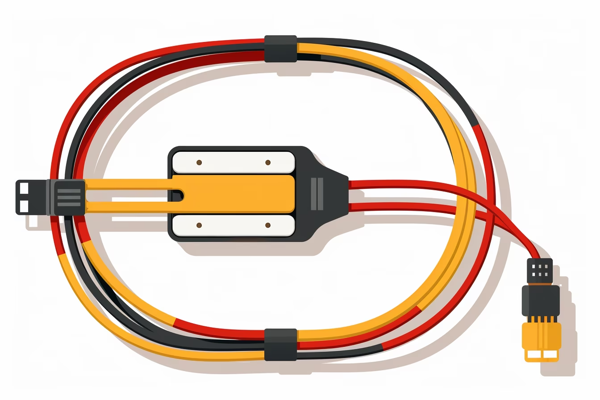
The Ultimate DIY Tablet Repair and Flex Cable Guide: Fix Your Tablet Like a Pro and Save Money
Tablets have become an integral part of our lives, keeping us connected, entertained, and productive. But what happens when your tablet starts acting up or stops working altogether? Instead of rushing to the nearest repair shop and spending a fortune, why not try fixing it yourself? With the right tools, knowlege, and a little bit of patience, you can become your own tablet repair expert and save some serious cash. In this ultimate DIY tablet repair and flex cable guide, we'll walk you through the process step by step.Understanding the Basics
Before diving into tablet repair, it's essential to understand the basics. Tablets consist of several components, including the display, motherboard, battery, and flex cables. Flex cables, in particular, play a crucial role in connecting various parts of the tablet and allowing them to communicate. These thin, ribbon-like cables are prone to damage due to their delicate nature and constant bending during regular use.Identifying the Problem
The first step in repairing your tablet is identifying the problem. Is the display not working? Are there touch screen issues? Or maybe the charging port is malfunctioning? Once you've pinpointed the problem, you can move on to the next steps.Gathering the Right Tools
To successfully repair your tablet, you'll need some essential tools. Here's a list of items you should have on hand:- Screwdriver set: Tablets are held together with tiny screws, so a good screwdriver set with interchangeable heads is a must.
- Plastic pry tools: These tools help you safely open the tablet without damaging the delicate components or the outer shell.
- Heat gun or hairdryer: Some repairs may require heating certain parts to loosen adhesive or remove components safely.
- Tweezers: Handy for holding small parts and cables during the repair process.
- Isopropyl alcohol and cotton swabs: Used for cleaning connectors and removing any dirt or grime from the tablet's internals.
Fixing Common Tablet Issues
Display Issues
If your tablet's display is not working or showing strange patterns, the problem could lie with the flex cable connecting the display to the motherboard. Follow these steps to fix it:- Power off the tablet and disconnect any cables or accessories.
- Use a plastic pry tool to carefully open the tablet's housing.
- Locate the flex cable connecting the display to the motherboard.
- Gently disconnect the cable by lifting the connector latch and sliding it out.
- Clean the connector and cable ends with isopropyl alcohol and a cotton swab.
- Reconnect the flex cable and secure the connector latch.
- Close the tablet's housing and power it on to test the display.
Touch Screen Issues
If your tablet's touch screen is unresponsive or behaving erratically, the flex cable responsible for touch input may be the culprit. Here's how you can fix it:- Power off the tablet and remove any cables or accessories.
- Open the tablet's housing using a plastic pry tool.
- Locate the flex cable responsible for touch input.
- Gently disconnect the cable by lifting the connector latch and sliding it out.
- Clean the connector and cable ends with isopropyl alcohol and a cotton swab.
- Reconnect the flex cable and secure the connector latch.
- Close the tablet's housing and power it on to test the touch screen.
Charging Port Issues
If your tablet is not charging properly or the charging port feels loose, it may be time to replace the flex cable connected to the charging port. Follow these steps to fix it:- Power off the tablet and disconnect any cables or accessories.
- Open the tablet's housing using a plastic pry tool.
- Locate the flex cable connected to the charging port.
- Gently disconnect the cable by lifting the connector latch and sliding it out.
- Clean the connector and cable ends with isopropyl alcohol and a cotton swab.
- Replace the old flex cable with a new one, ensuring it is securely connected.
- Close the tablet's housing and power it on to test the charging port.
Safety Precautions
When repairing your tablet, it's essential to take some safety precautions to avoid further damage:- Work in a clean and well-lit area to prevent losing small screws or damaging delicate components.
- Power off the tablet and disconnect the battery before performing any repairs to avoid electrical shock or short circuits.
- Handle components and flex cables with care to prevent damage from static electricity or excessive force.
When to Seek Professional Help
While DIY tablet repair can be a cost-effective solution, there are instances where professional help is necessary. If you're uncomfortable with the repair process, dealing with complex issues, or lack the required tools, it's best to seek assistance from a qualified technician.Conclusion
Repairing your tablet doesn't have to be a daunting task. With the right tools, knowledge, and a little bit of patience, you can fix common issues and save money in the process. Remember to identify the problem, gather the necessary tools, and follow the step-by-step process outlined in this guide. By taking the DIY approach, you'll become a tablet repair pro and gain the satisfaction of mastering a new skill while keeping your hard-earned money in your pocket.Products to Choose From: - Samsung Galaxy Tab 3 GT-P5200 GT-P5210 10.1 Micro USB Charging Port Flex Cable - Power Flex and Volume Cable for Apple iPad 3 and iPad 4 - New Microsoft Surface Pro 4 1724 Touch Digitizer Flex Cable X934118-002 ZVFE203 - Charging Port Connector Dock Flex Cable Replacment for Ipad Air (White) - Power on Off Volume Button Silent Switch Flex Cable Replacement for IPad 2 2012 CDMA


themainchic - October 17, 2023
Great guide! Just what I needed. Saved me a ton of money on tablet repairs. Thanks!
whale-rider - October 16, 2023
Wow, this guide is amazing! I've been struggling with my tablet's flex cable issue for weeks and this article has everything I need to fix it myself. Thanks for sharing!